
Accessibility features
Storied is dedicated to making your websites usable by everyone. Our platform includes built‑in features and best practices to support people with a wide range of abilities.
1. Screen Reader Support
-
What it does
Storied is built to work seamlessly with screen readers (such as NVDA, JAWS, VoiceOver). All core components emit the necessary accessibility information so that visually impaired users can understand and navigate your content.
-
What you need to do
Nothing—our widgets ship with the proper ARIA roles, states, and properties by default.
2. Keyboard Navigation
-
Full keyboard control
Users can move through clickable and hoverable elements with the Tab key, shift focus with Shift + Tab, and scroll the page using the Arrow keys—no mouse required.
Tab order
The sequence follows the order of layers in your Layers panel.
- To adjust the order:
-
Open the Layers panel.
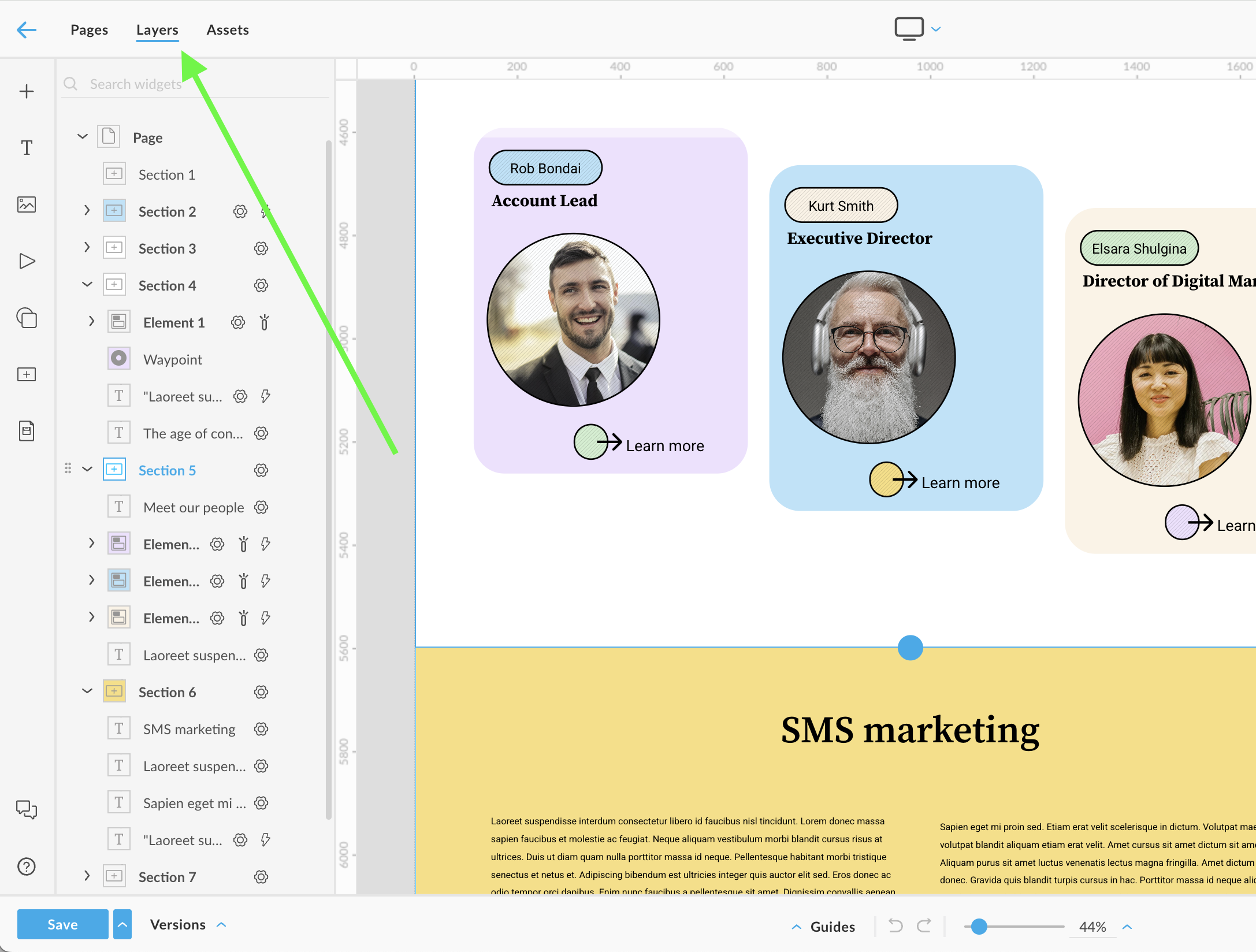
-
Drag items up or down so they match the desired tabbing sequence.
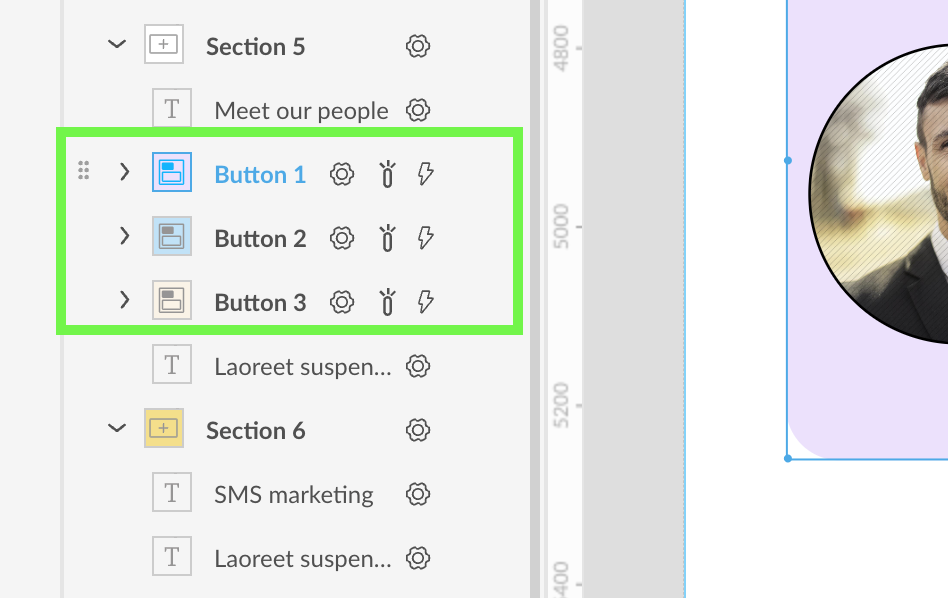
-
- Example: If “Button 1” must be focused before “Button 2,” ensure it appears above it in Layers.
- To adjust the order:
-
Learn more about
tabindexhttps://developer.mozilla.org/en-US/docs/Web/HTML/Global_attributes/tabindex
3. Adding Alternative Text (Alt Text) to Images
Descriptive alt text helps screen readers convey the meaning of your images.
- Insert your image into the design.
-
Open Image settings in the Properties panel.
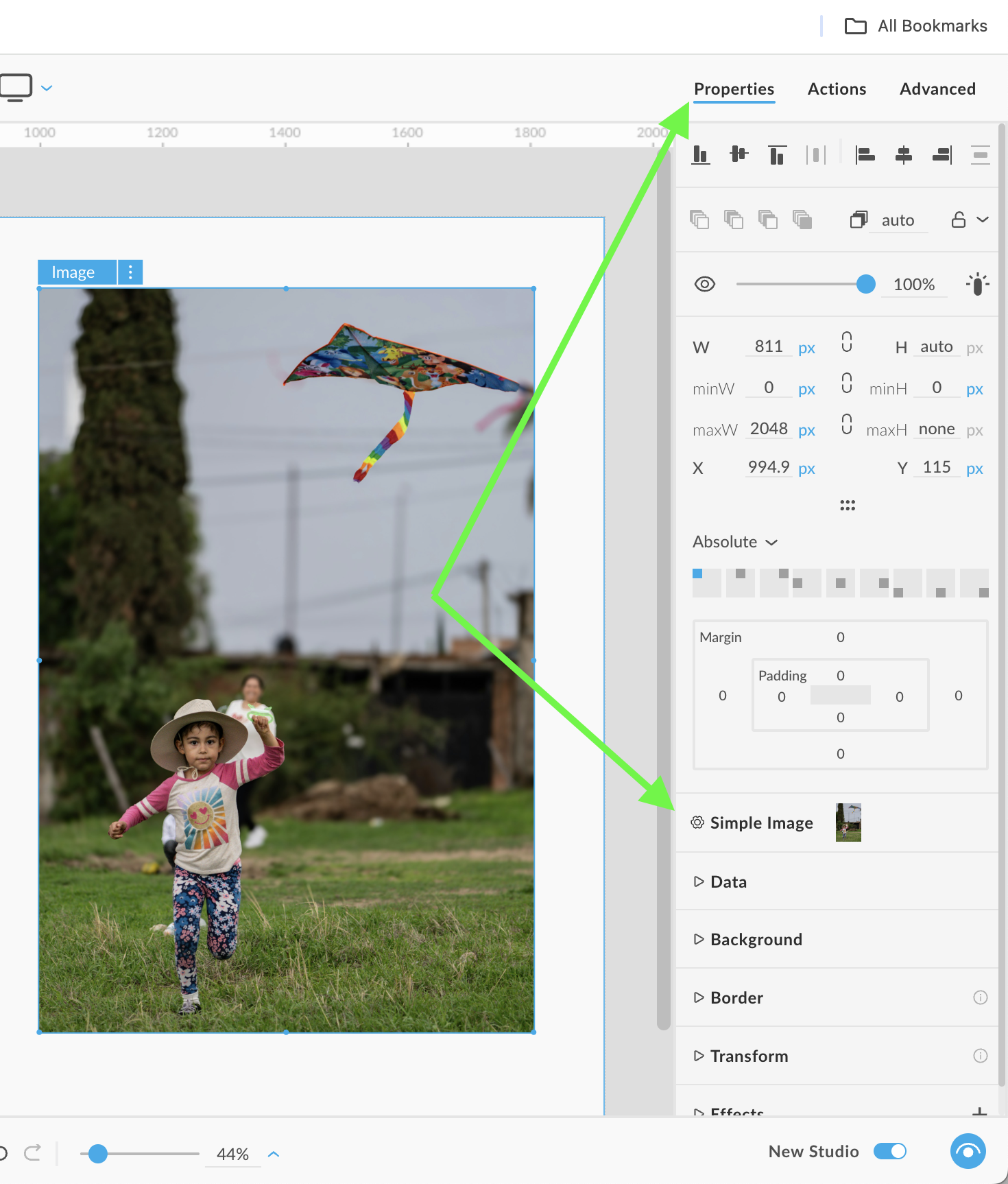
- In the Image Title field, enter a concise description (the “alt” text).
-
Example:
"Alt: Photo of a smiling child holding a kite"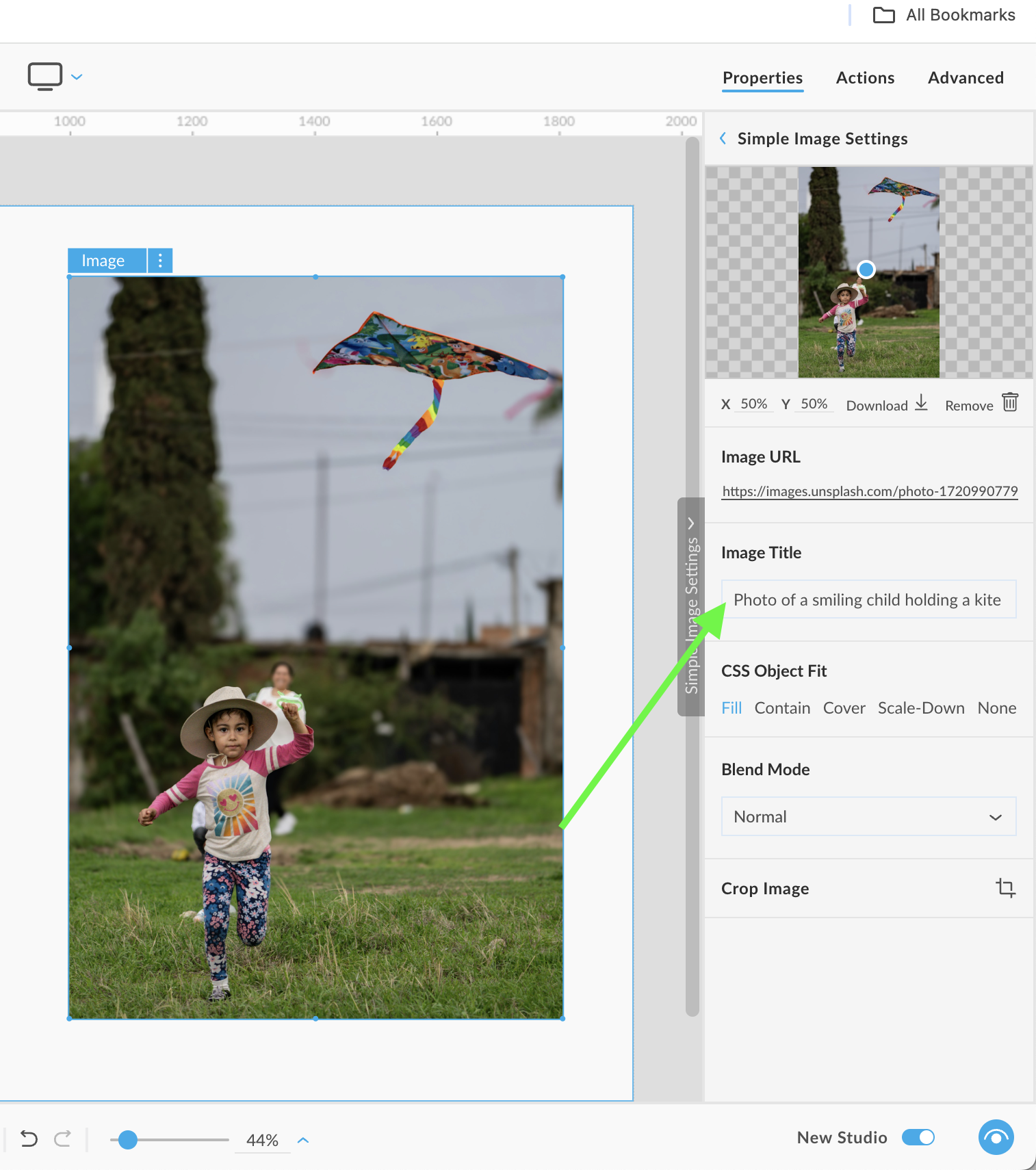
-
All images should have alt text that describes their purpose or content.
4. Custom ARIA Attributes
For advanced use cases—such as custom controls or nonstandard widgets—you can add or override ARIA attributes manually:
- Select your element.
-
Open the Advanced panel.
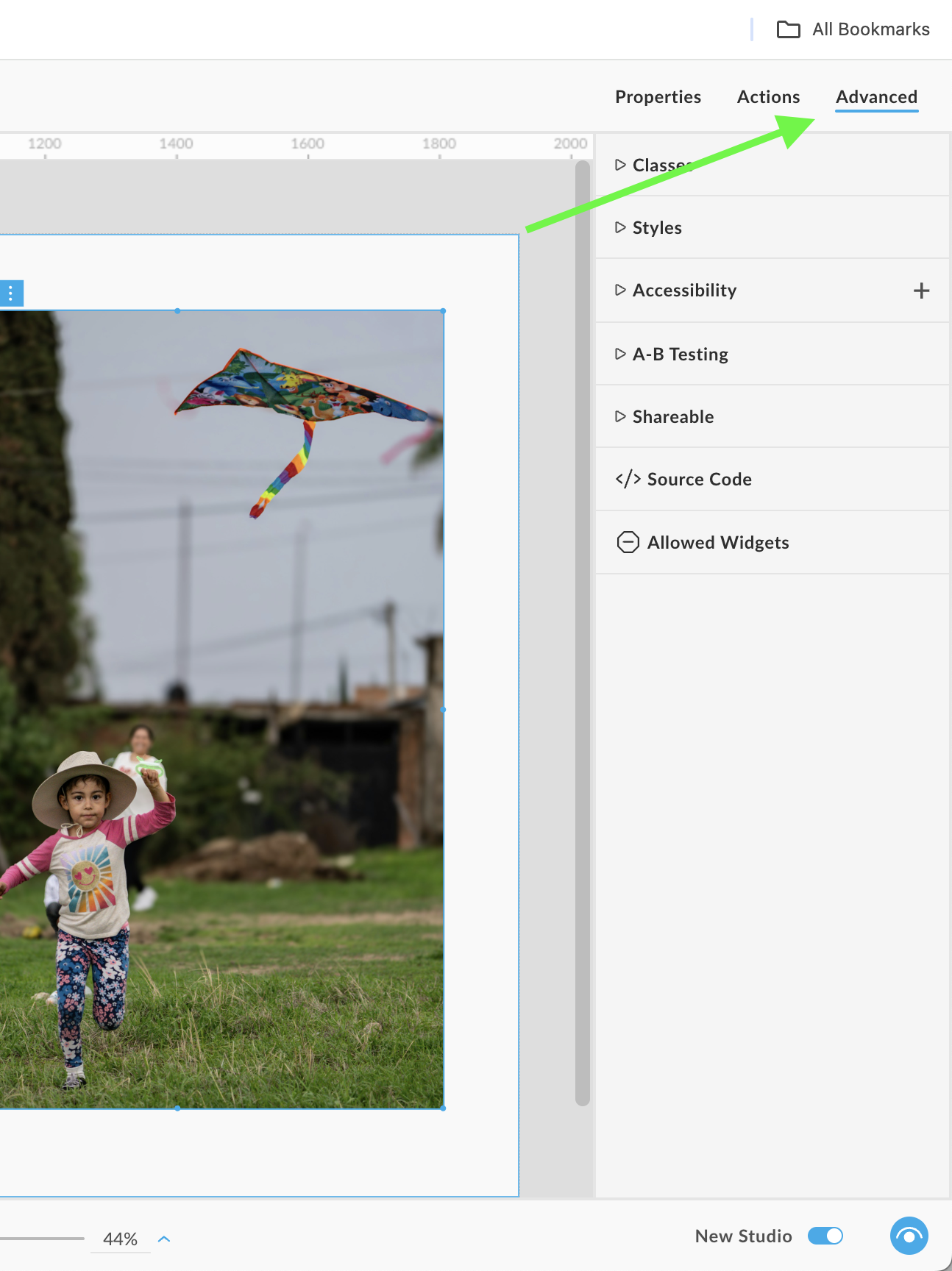
-
Add any required ARIAs and its values
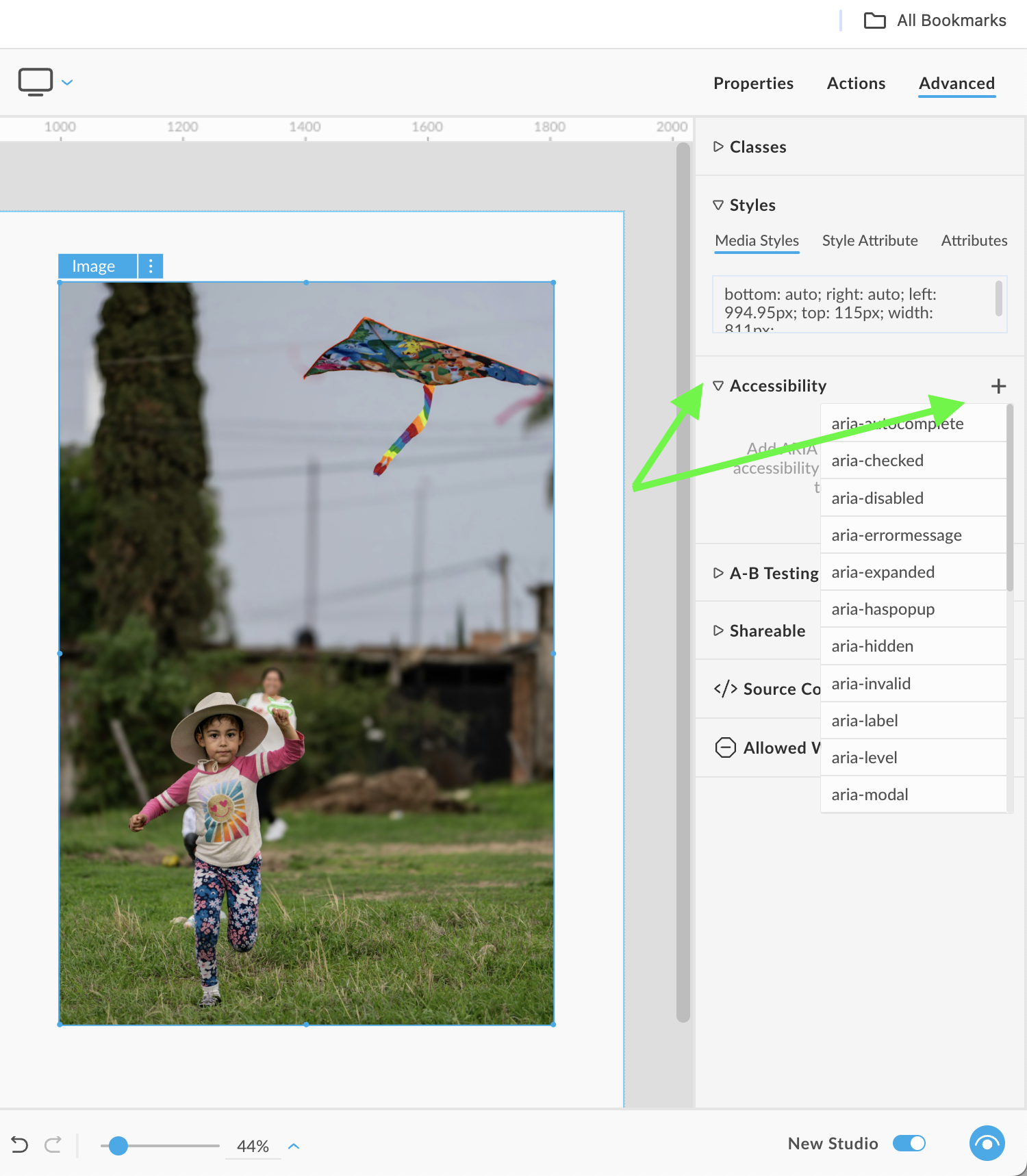
Refer to MDN’s ARIA techniques for detailed guidance:
https://developer.mozilla.org/en-US/docs/Web/Accessibility/ARIA/Guides/Techniques
5. Reader Mode (Mobile)
-
Not supported
Reader Mode works best on static HTML pages. Since Storied sites use dynamic widgets and Javascript, mobile Reader Mode is unavailable.
6. Performing an Accessibility Audit
You can test and refine your site’s accessibility using Chrome DevTools:
- Open your site in Chrome.
- Press F12 (or Cmd + Option + I on Mac) to open DevTools.
Learn more about Chrome’s accessibility tools:
https://developer.chrome.com/docs/devtools/accessibility/reference
By following these guidelines and using Storied’s built‑in features, you’ll create more inclusive, user‑friendly websites that everyone can enjoy.