
Enabling AI agents for your projects
AI Agent
The AI Agent helps viewers interact with your content more efficiently by surfacing the information they are most interested in—without having to read through the entire document. It can provide a summary response to questions based entirely on the documents you've added for inclusion, and points users to the specific page on which the AI-generated answer is based so users can verify for themselves and more quickly get to the relevant information they are looking for.
To enable the AI Agent:
-
Open the Publish tab.
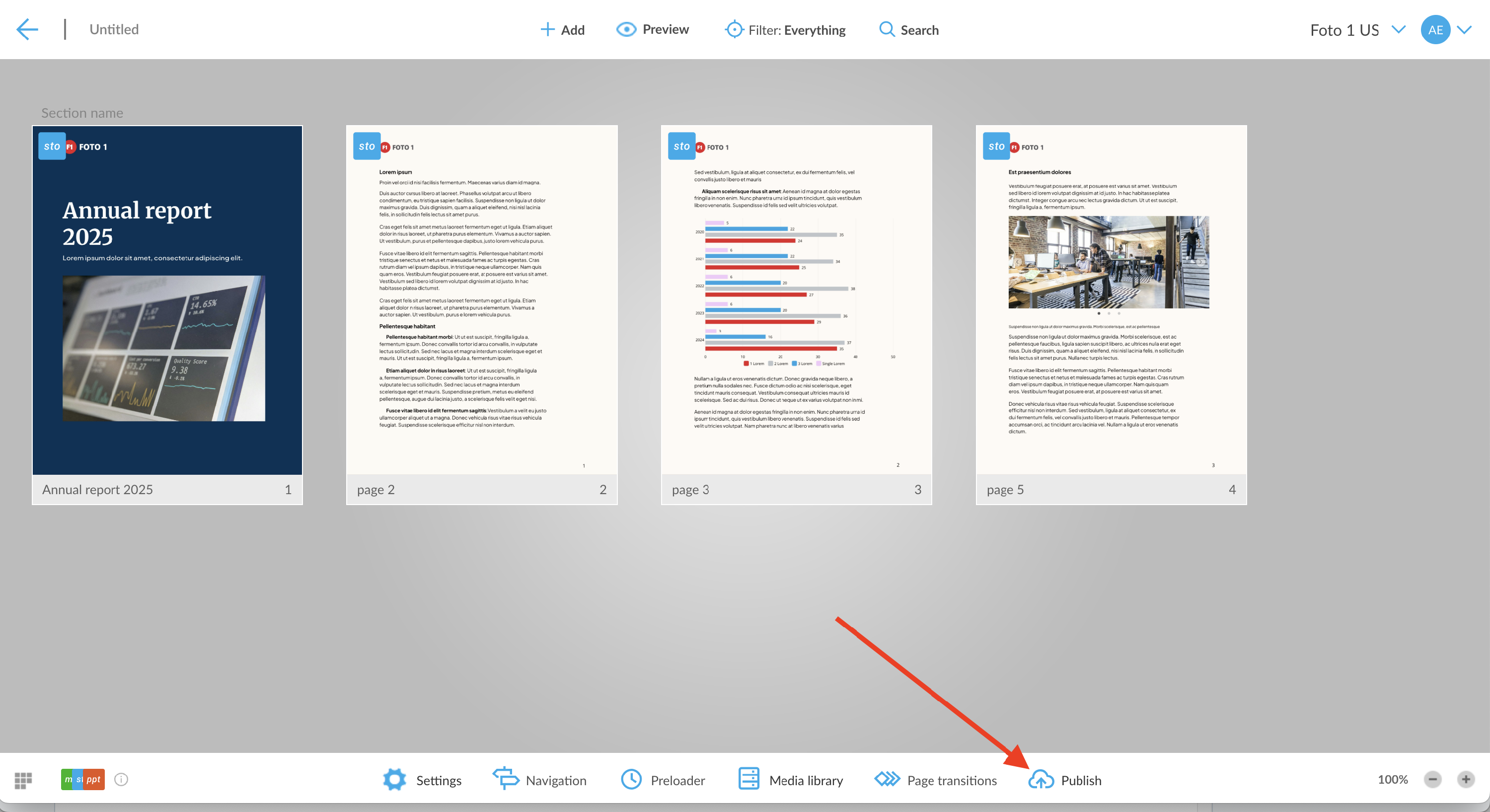
-
If your project is not yet published, you’ll need to publish it first so the final content is indexed and made available for the AI to use to craft its answers. The AI Agent feature becomes available only after publishing.
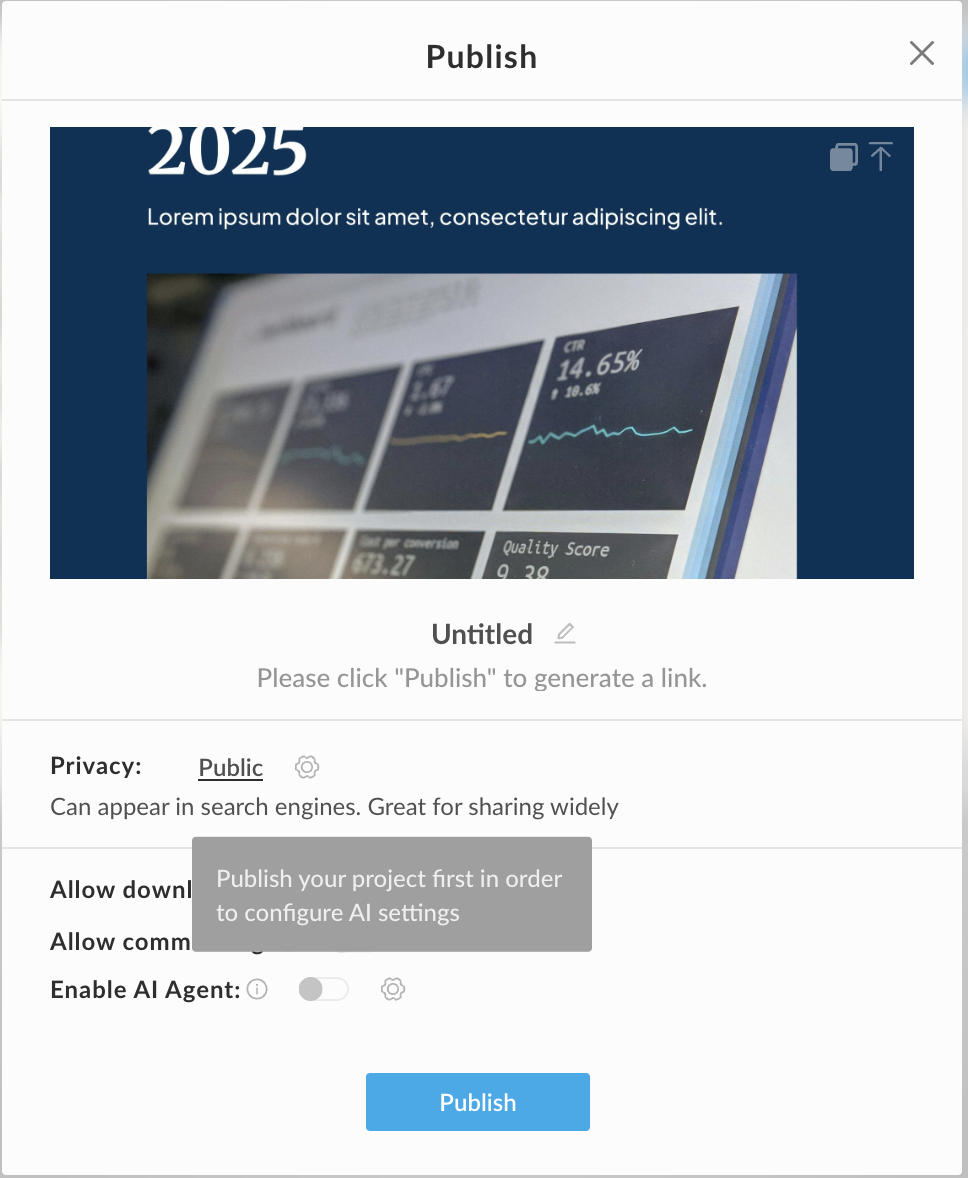
- Once the project is published, the AI Agent toggle will become active.
-
Switch on the toggle to enable the feature.
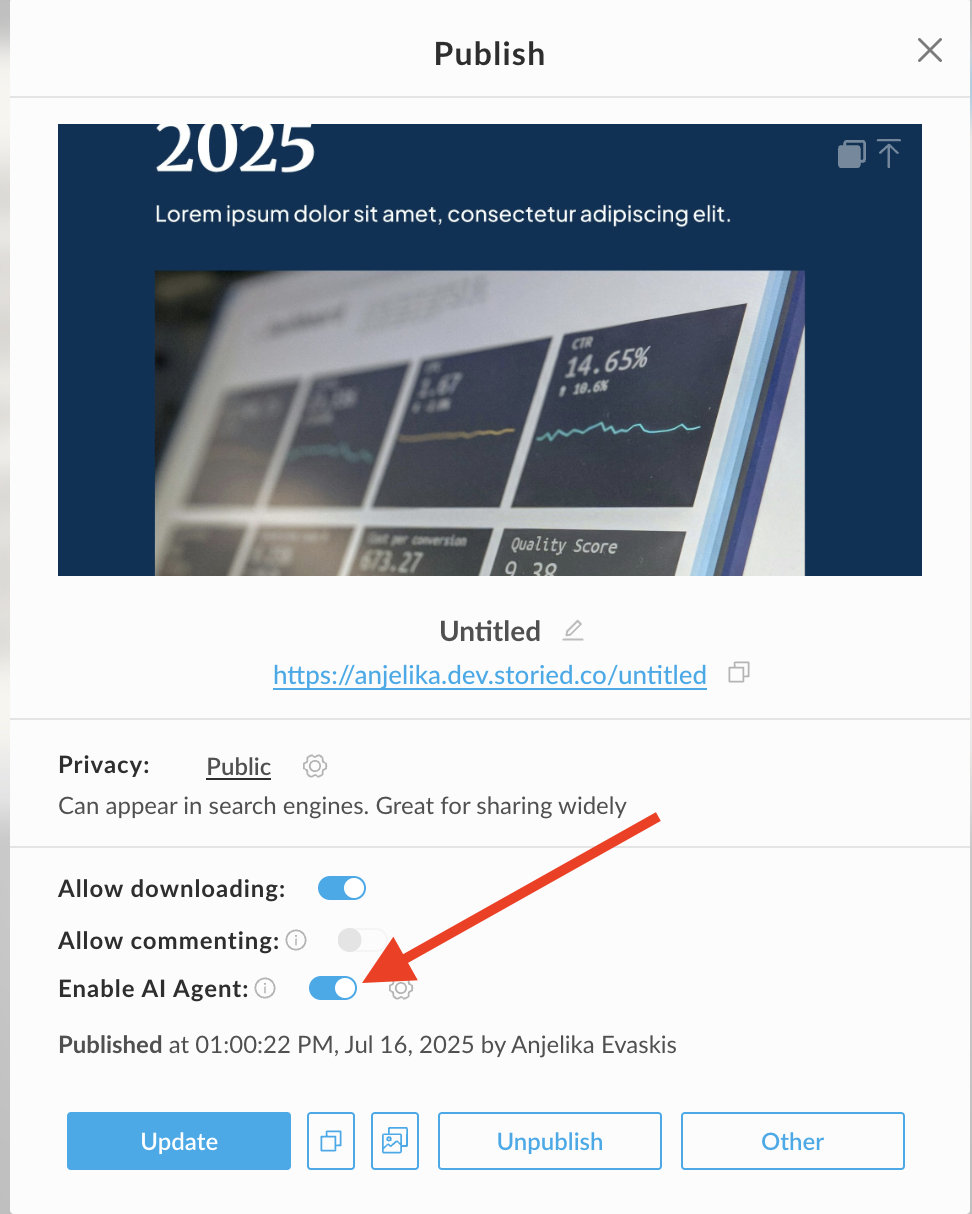
- To customize how the AI Agent interacts with your content, click the gear icon next to the toggle to access configuration options.

How to configure AI Agent
Settings

AI Agent Sources
When configuring the AI Agent, you can choose where it pulls its information from. These source settings define what content the Agent will analyze and respond from:
- This Site Only
The AI Agent will reference only the content on the current site.
-
Storied Embedded Sites
The AI Agent will analyze content from any Storied sites embedded within this project. You'll need this if you're adding an AI agent to a Storied Room that has linked content OR if you're using Storied Embeds to link other Storied content to this site.
-
Third-Party Sites
The AI Agent can pull content from external, third-party sites, but is limited to a single linked page per source. The Agent will not crawl entire websites—just the specific page URL you provide.
AI Agent Name
This is the name that will appear as the assistant when viewers interact with the Agent. You can personalize it to match your brand or tone (e.g., "SmartGuide," "InfoBot," or "Ask Ava").
Welcome Message
This is the first message viewers will see when they open the AI Agent. It should briefly introduce what the Agent can do (e.g., "Hi! I can help you find information on this site—just ask me anything."
Contact
This optional field allows you to include a contact email.
Logo
Your default logo (see Account Settings) will appear here.
NOTE: Your default account settings allow you to set this once as the default for all of your projects. Should you need to, you can then override these defaults on a project-by-project basis.

Starter Prompts
The Starter Prompts feature allows you to guide the conversation by suggesting questions or actions that users can click to get started. Each prompt consists of two parts:

For AI Agents targeting a single document, Storied will generate AI-based starter prompts, which are a great starting point for you to review, edit and/or replace with your own prompts. Storied will also generate an AI-based summary of the document which you can access via the "Summarize this" prompt.
1. AI Input (Internal Prompt)
- This is the text that gets sent to the AI Agent when the user clicks the prompt.
- It should be a clear, well-phrased instruction or question that helps the Agent provide a useful response.
2. Display Text (User-Facing Prompt)
- This is the text that viewers will see in the Agent interface.
- It should be short, friendly, and easy to understand.
You can create multiple starter prompts to help guide users toward common questions or actions, making the AI experience more helpful and intuitive right from the start.
Previewing the AI Agent
You’ll see the AI Agent in action, including its name, welcome message, and any starter prompts you've added.
