
Making your content downloadable
You can let viewers download your content as a PDF, PowerPoint, or directly from a URL. Here’s how to set it up.
-
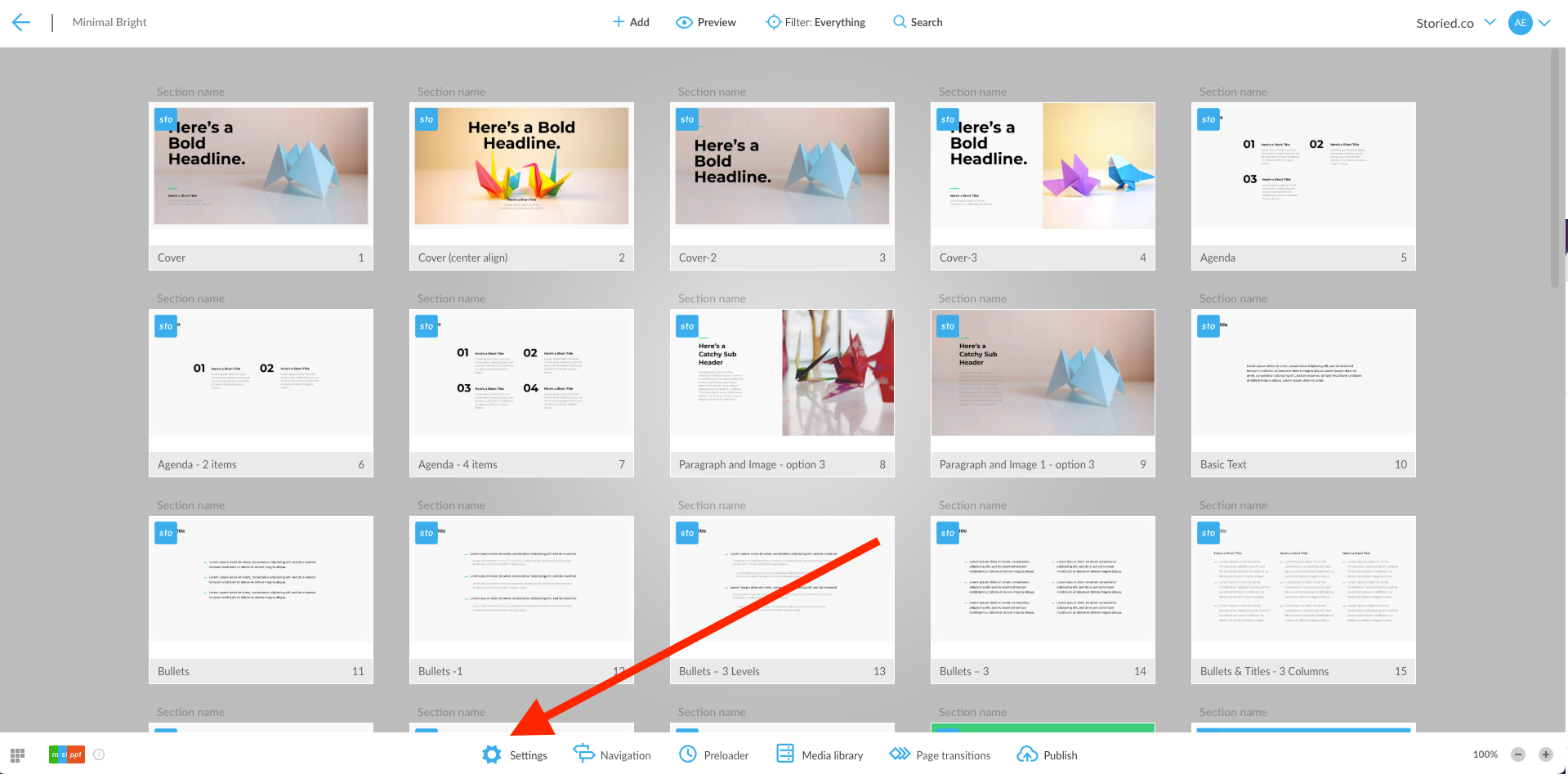
Open your Content Settings.
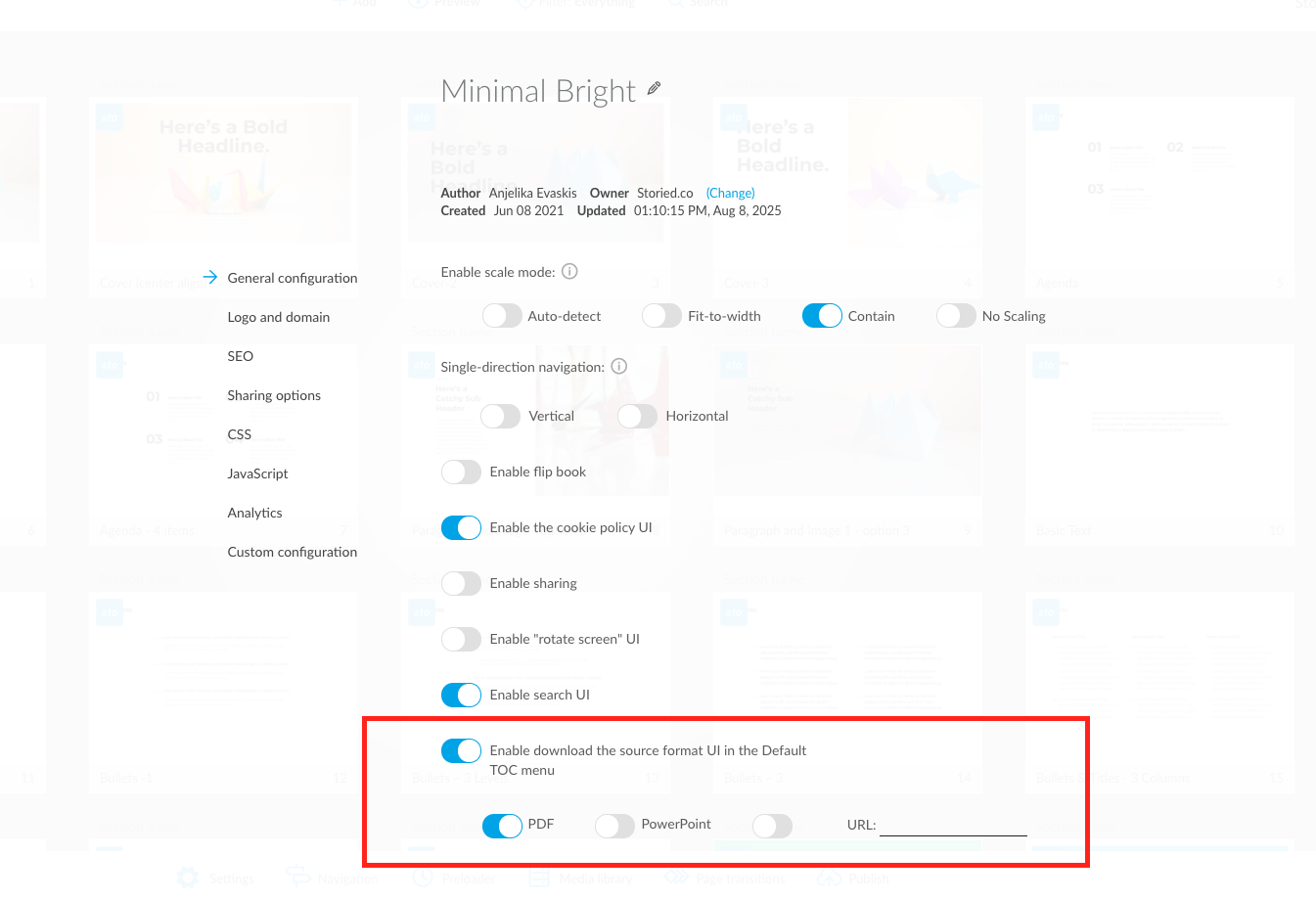
Under the General Configuration tab:
- Turn on Download in the Default Menu.
-
Choose the download type: PDF, PowerPoint, or URL. The URL option is great if you want to use a particular source file (e.g., your own source PDF as opposed to one that is auto-generated by Storied). In this case you can also upload the source file to the Media Library for the project and use the hosting link URL.
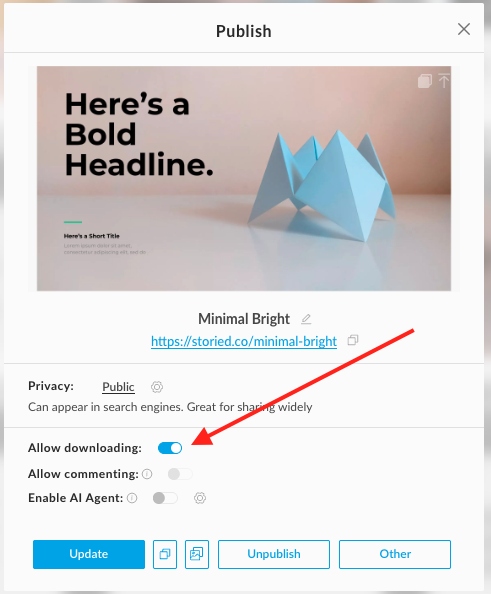
- Open the Publish (or Share) pop-up.
-
Toggle on Allow downloading.
- Preview your content to confirm it’s now downloadable.
Add a download button (if needed)
If your content is just one page, or if you’re not using the default menu, you’ll need to add a button manually.
To use the default icon:
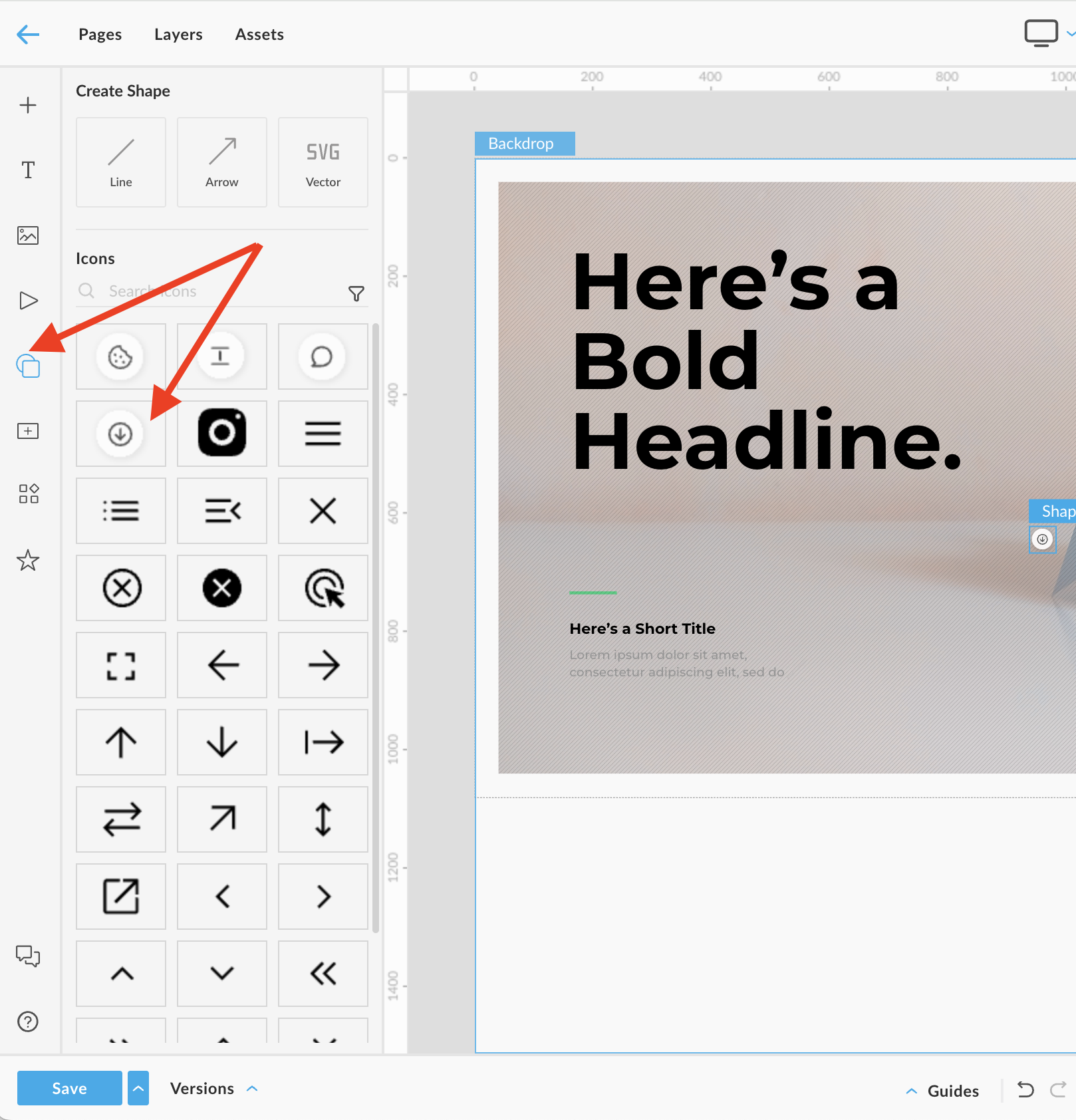
- In the editor, open the Shapes tab.
- Add the Download icon.
-
The action will be applied automatically.
Create a custom button (optional)
Want to use your own styled button instead? Just add the action manually:
-
Insert and design your button in the editor.
Open the Actions Panel.
Add this click action:
- General → Trigger Event → Source file download
