
Creating an animation on a path
If you want an object to move along a specific path, you can use the Animation on Path feature. Follow these steps to set it up:
- Select the object you’d like to move or animate.
-
Open the Actions panel.
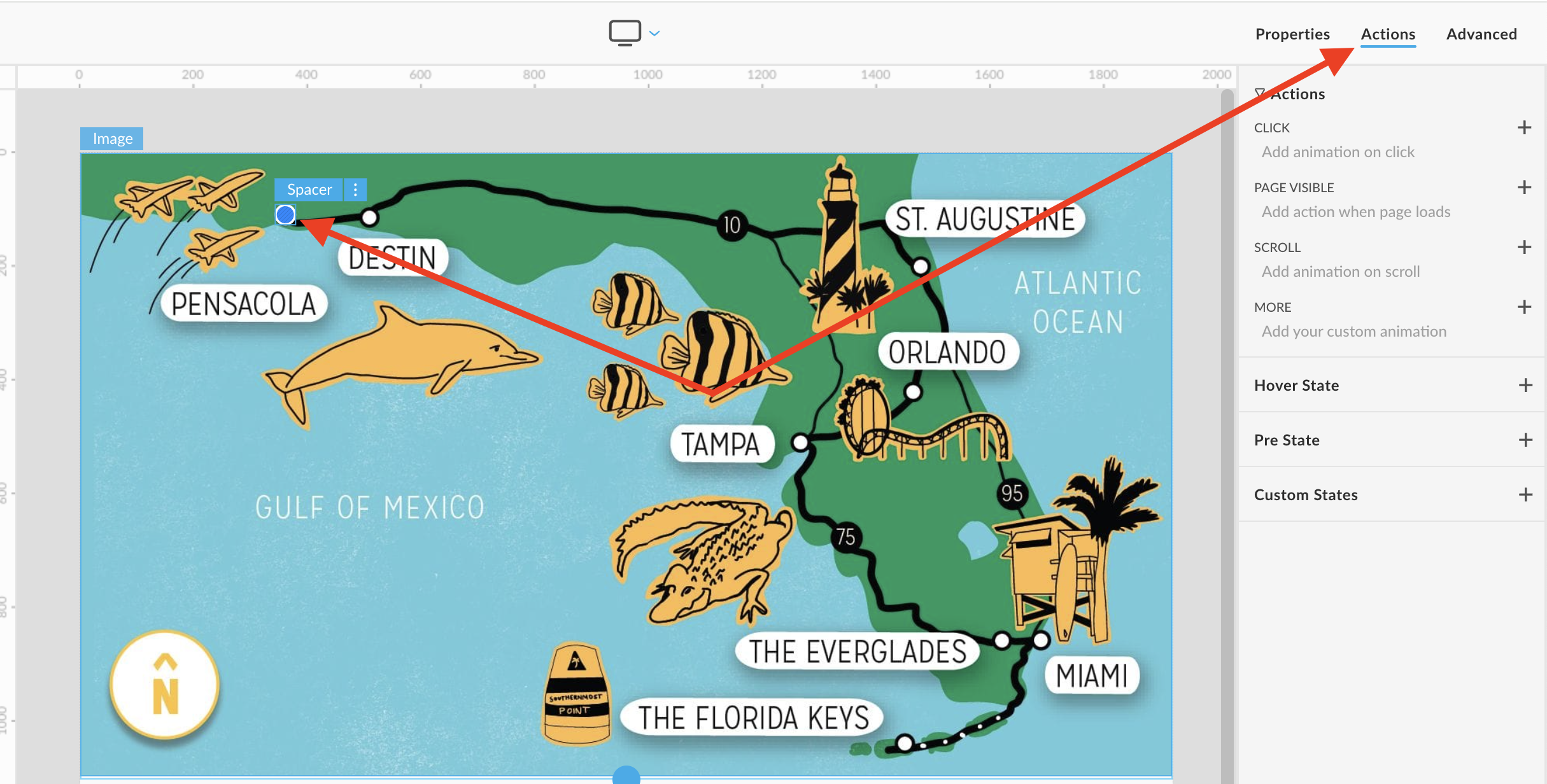
- Set your Trigger and Target as desired.
-
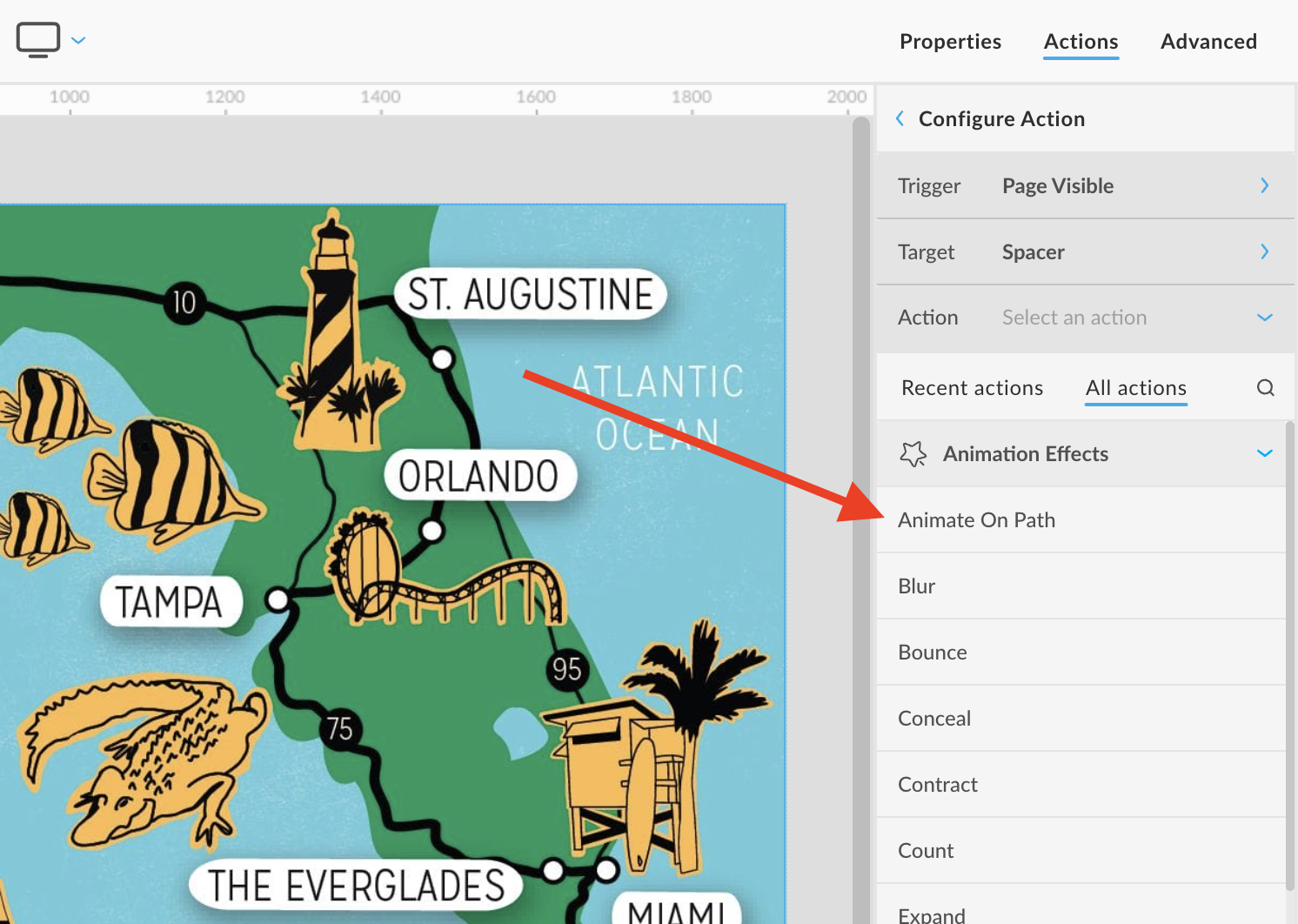
Under Actions, choose Animation Effect, then select Animation on Path.
-
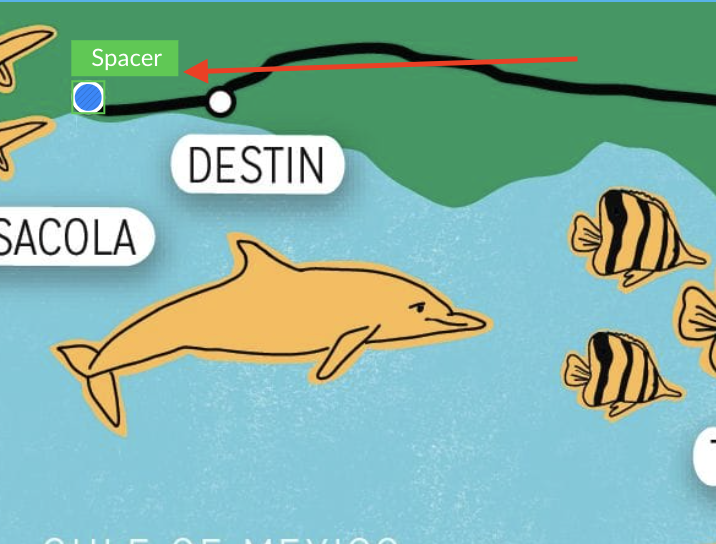
The tab for the selected object will turn green, indicating that path editing is active.
-
Drag on the canvas to draw the path for your object’s movement. The path will appear as a green dashed line.
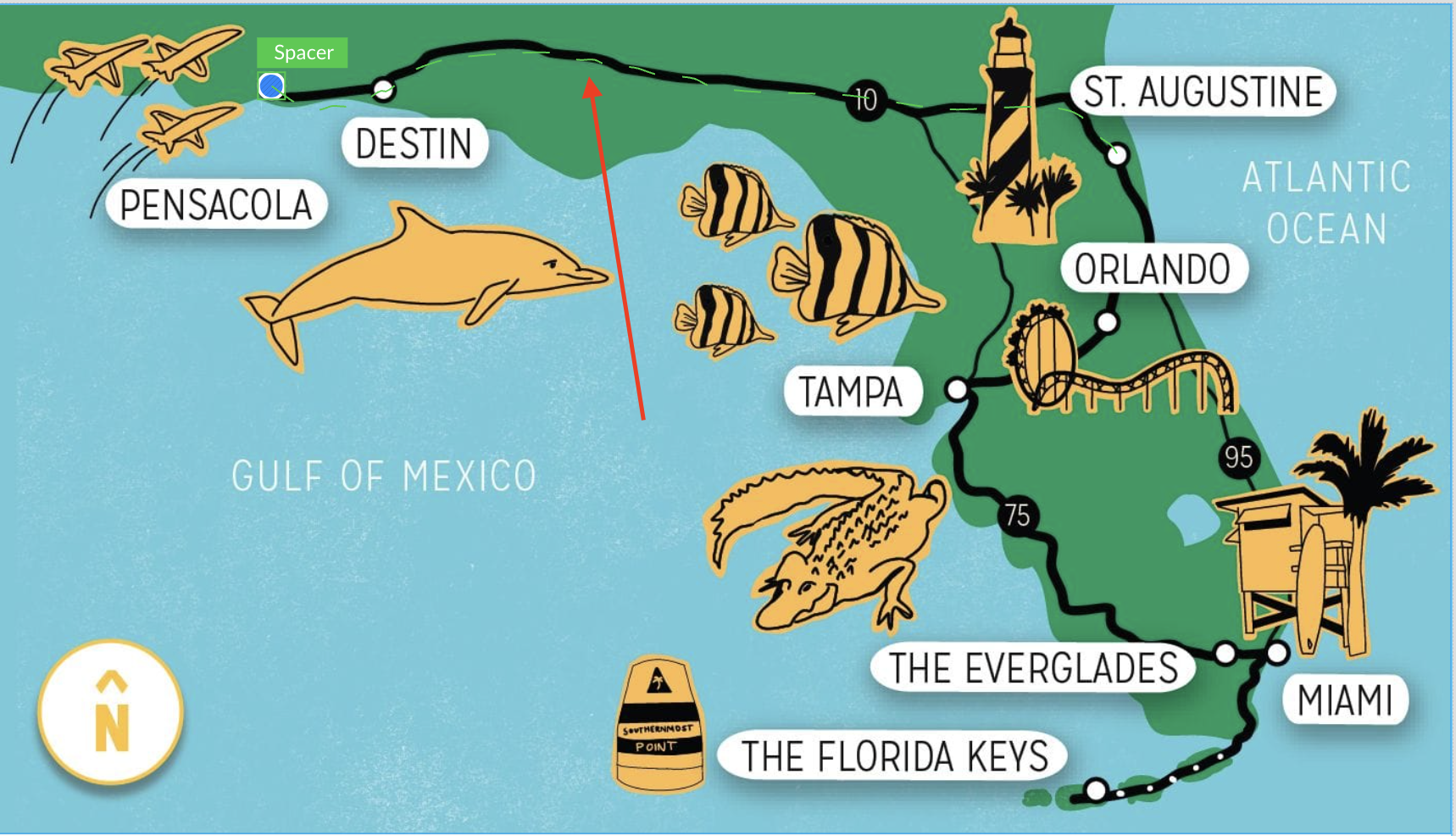
Once done, you can preview your animation to ensure the motion follows the intended path.
Watch video: